Design Thinking Notebook · Stage 4 of 5
Prototype
App Flow Sketch
Daily check-in → choosing a healthier option from the menu (reaching for the app instead of the usual go-to).
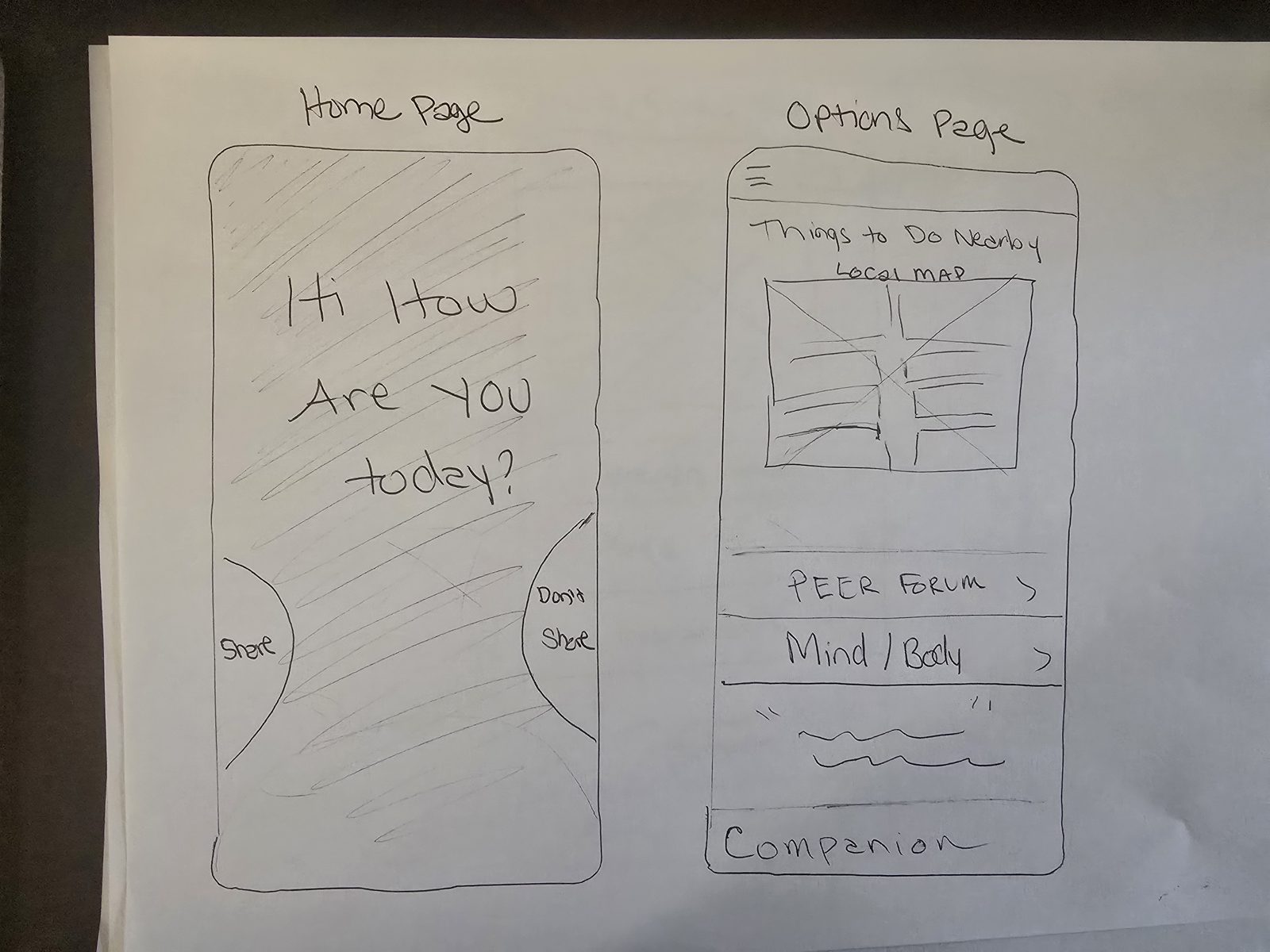
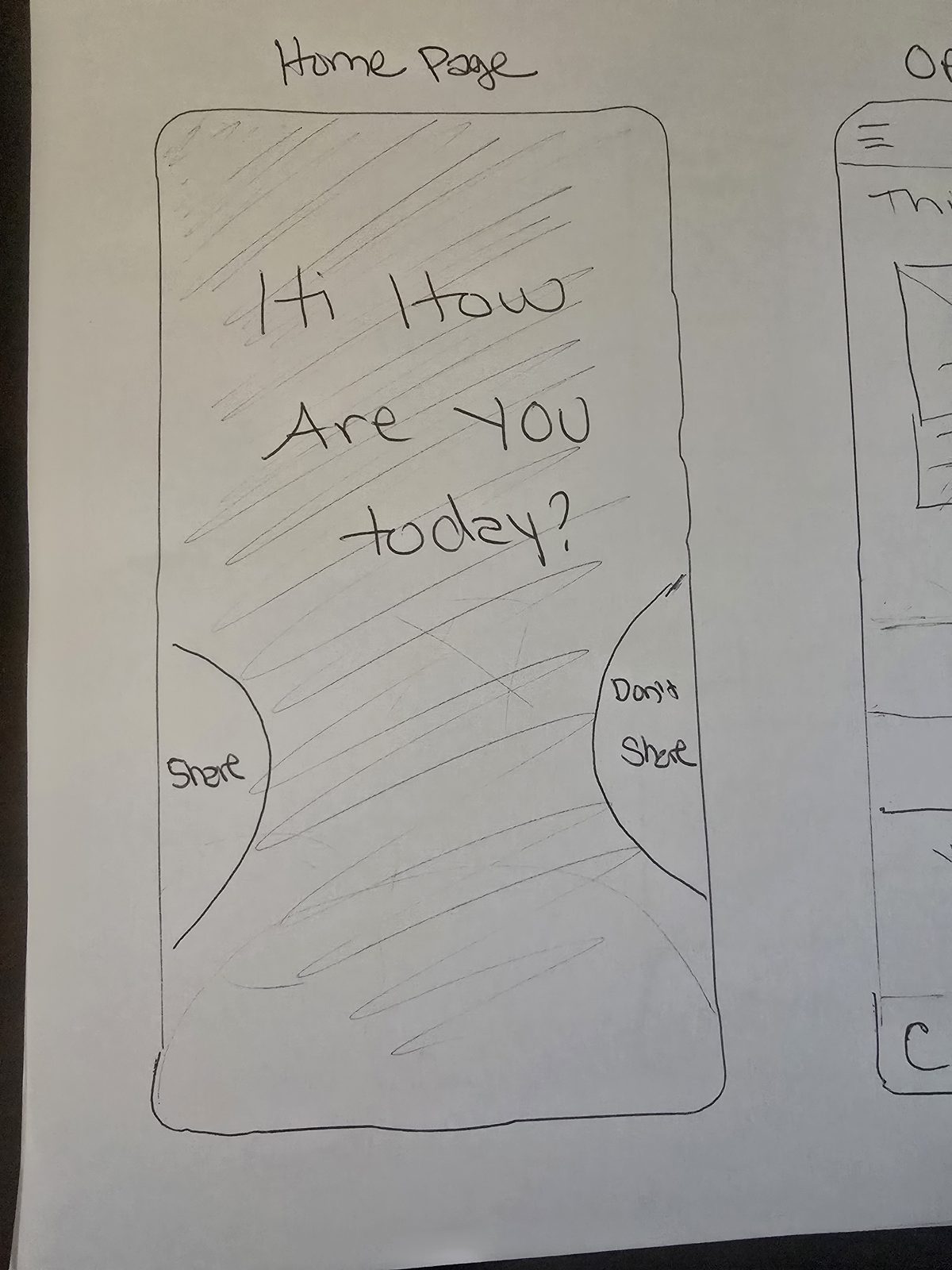
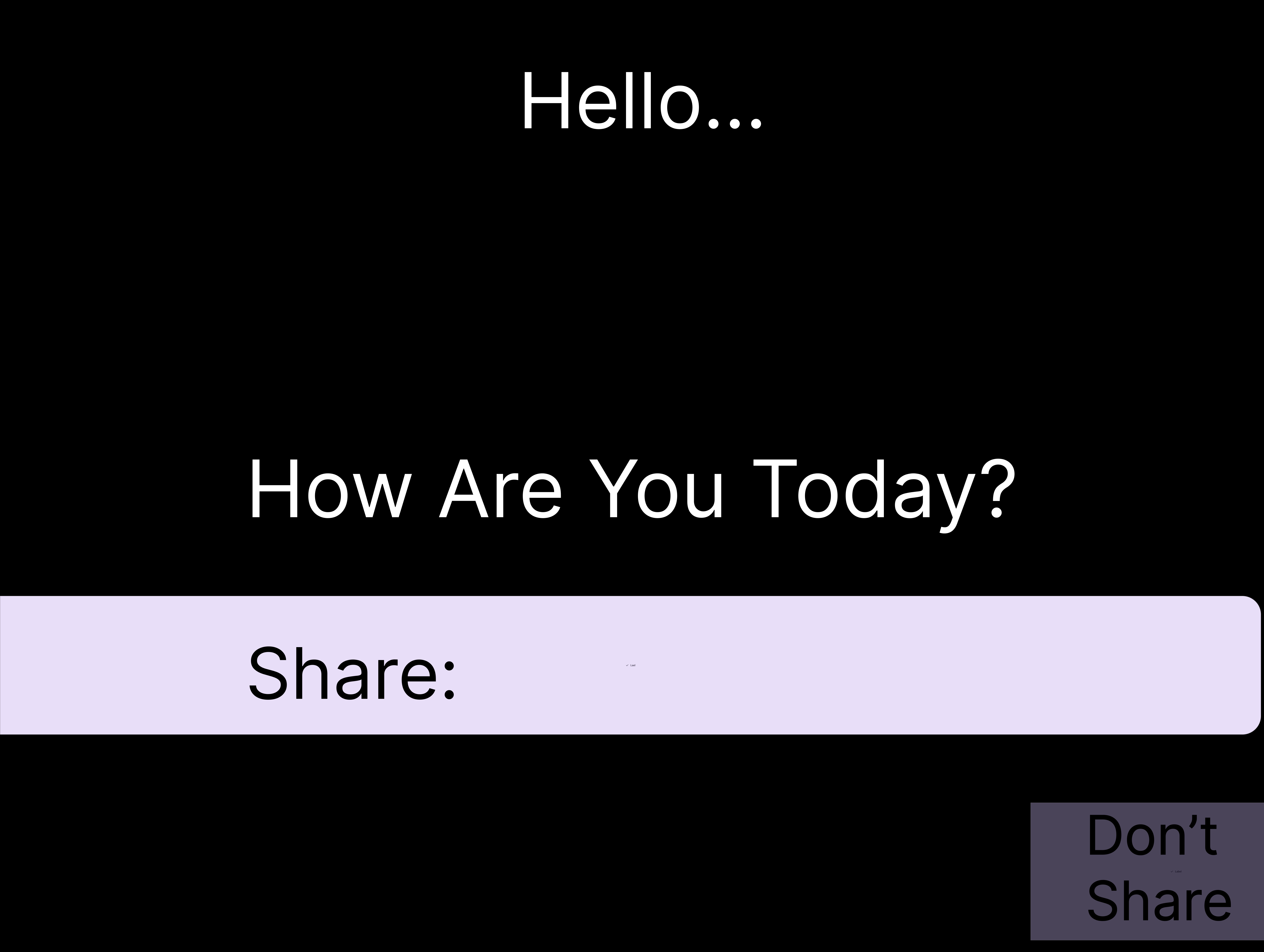
The Companion greets the user: “Hi! How are you today?” A large check-in space fills the screen, with two buttons underneath — Share and Don’t Share.
Taps Share and types (or speaks) how they’re feeling — or taps Don’t Share to skip straight ahead.
saveCheckIn() — logs today’s entry and mood, then routes to the Options / Home Page. Don’t Share skips saving and routes straight there, so the check-in never blocks access.
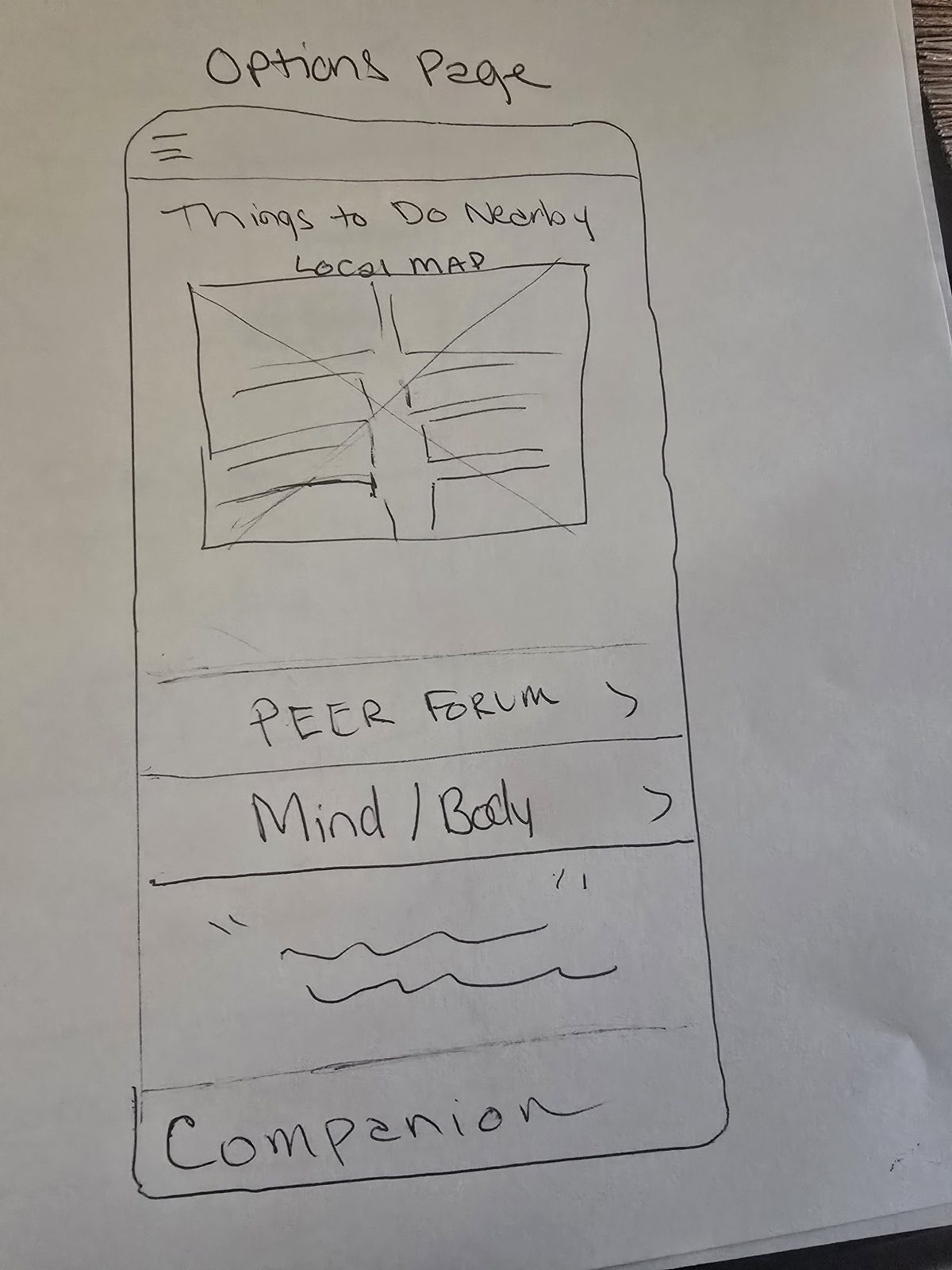
The Companion header up top, then the menu of choices: Things to Do Nearby (Local Map), Mind / Body, Peer Forum, and Knowledge Hub. This page is the hub every section branches from.
Taps one section — e.g., Mind / Body (or Peer Forum, or Knowledge Hub).
openSection(name) — loads the chosen section page. Every menu item routes the same way, and the ☰ menu always returns here.
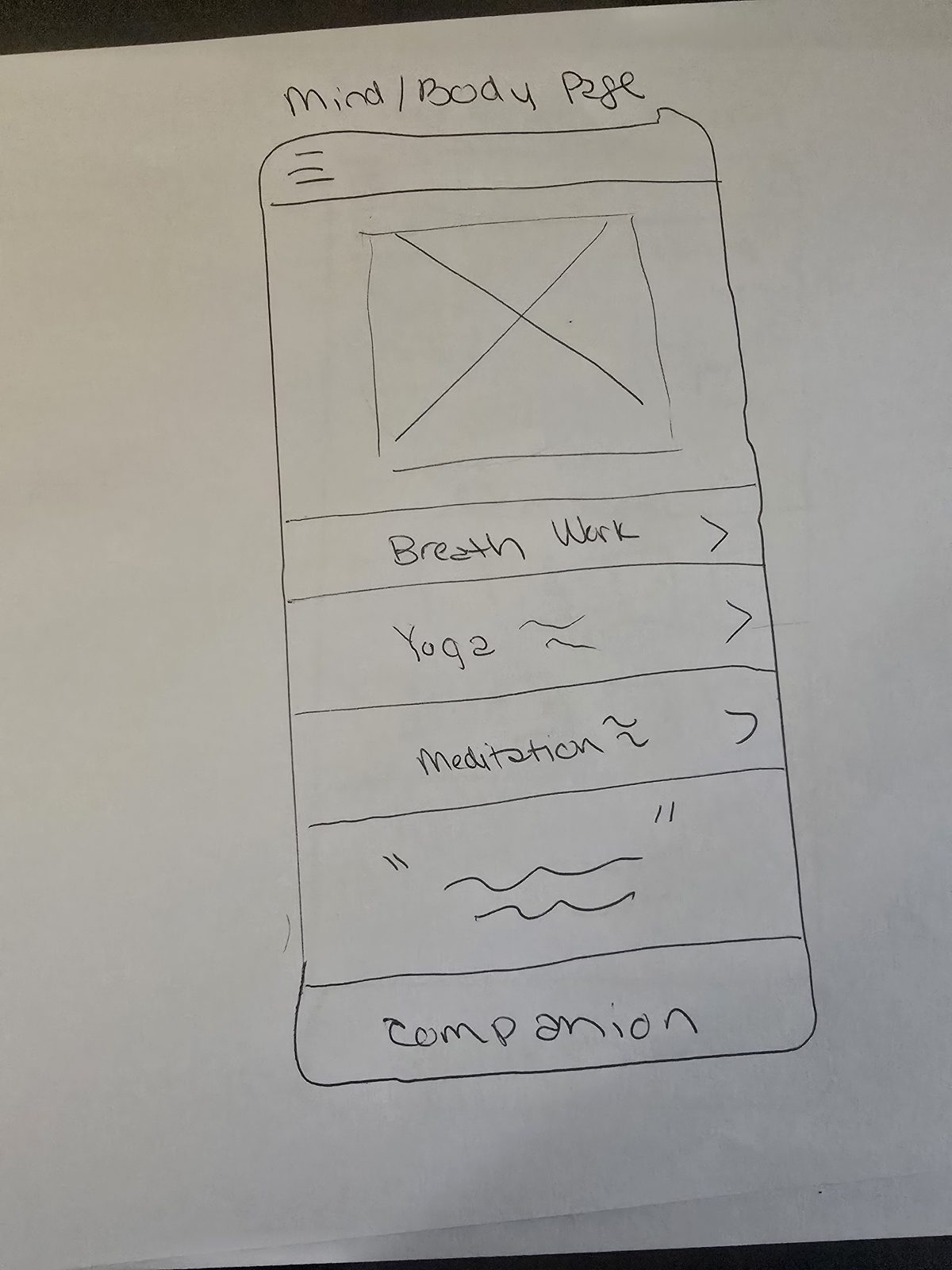
The Companion header, a short prompt, a preview image, and a list of guided options — Breath Work, Yoga, and Meditation — each with a › to open it.
Taps Breath Work.
openExercise("breathwork") — opens the guided breathing player. When it ends, the user returns here or back to the menu.
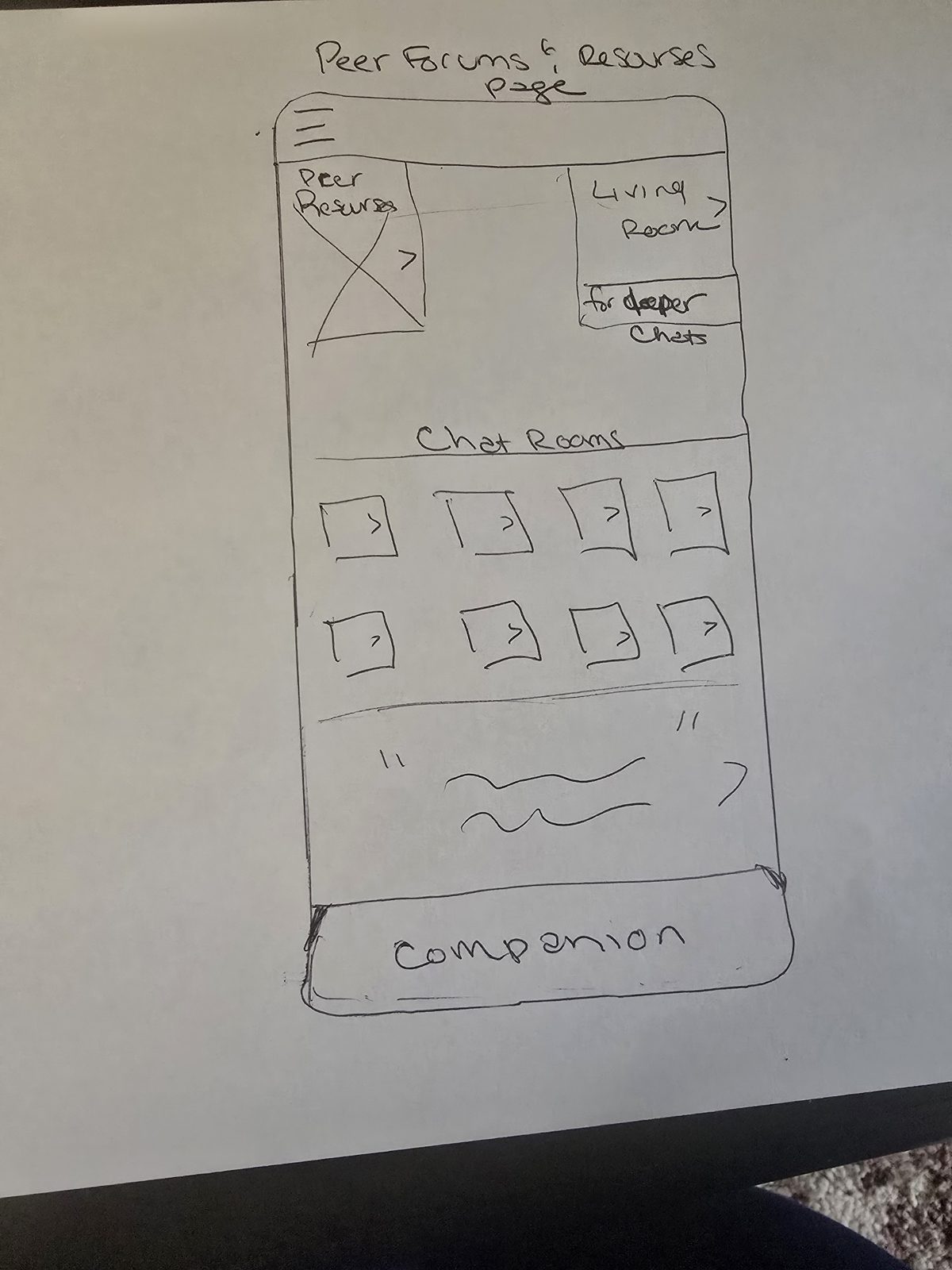
The Companion header, a grid of Chat Rooms (Living Room and others for deeper chats), and a Peer Resources link out to help outlets.
Taps a chat room — e.g., Living Room.
openRoom("living-room") — opens the anonymous room so the user isn’t alone in the moment. Peer Resources routes out to support outlets.
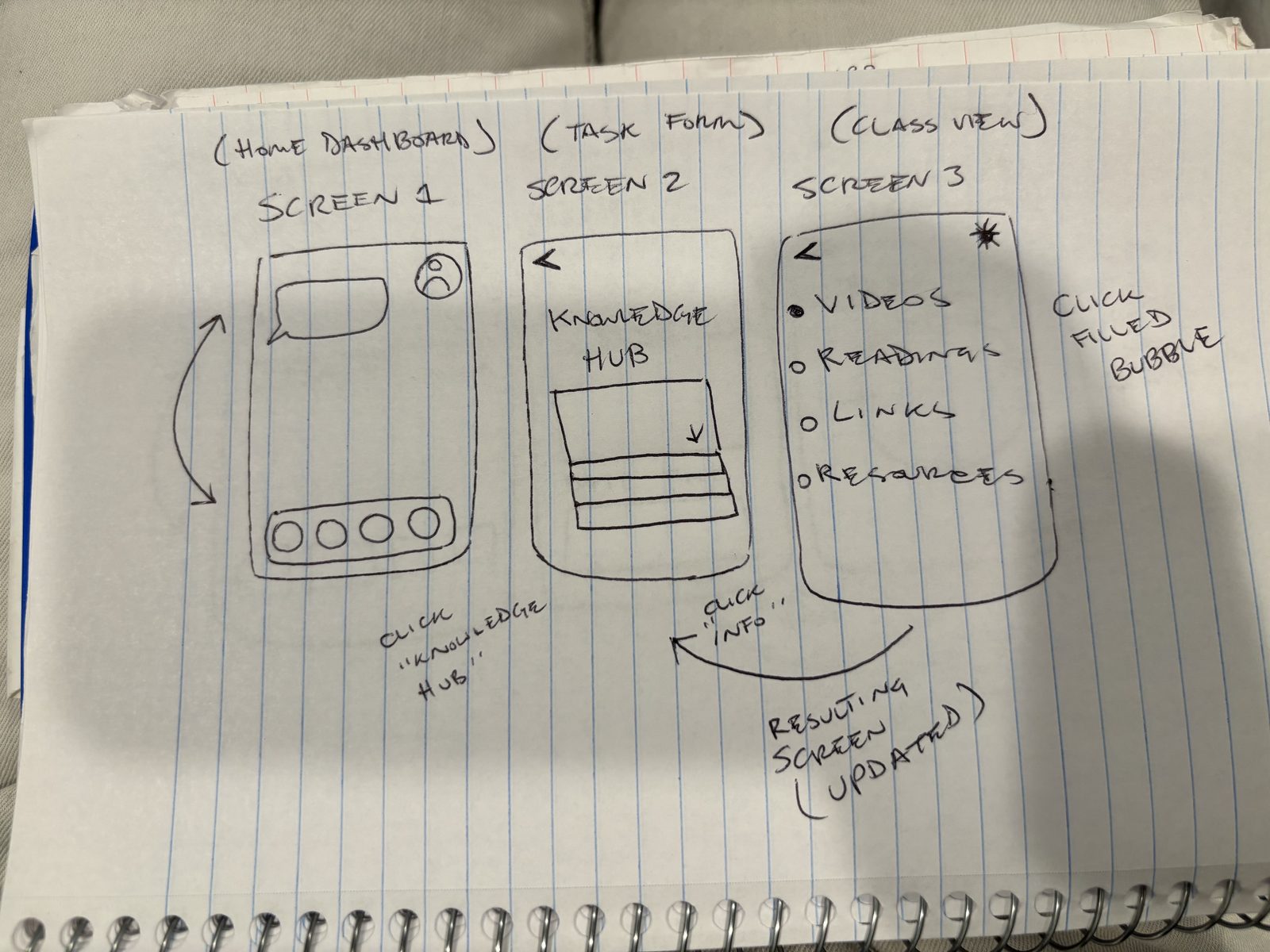
The Companion header and a list of learning material: Videos, Readings, Links, and References — facts about habits, dopamine, and mental health (Naked Mind–inspired).
Taps an item (e.g., Videos), then taps “Info” on a specific entry.
openResource(id) — opens the selected resource; the resulting screen updates with that content. The ☰ menu returns to the Options / Home Page.
• When things go wrong: if a check-in signals real distress, the Companion steps back from the menu and surfaces human help (a trusted contact or 988) instead of an activity. The app knows its limits. • Dead ends: every page keeps the Companion and the ☰ menu, so the user can always return to the Options / Home Page. No screen traps them. • Necessary steps: Don’t Share lets users reach the menu without checking in first, so the flow never forces a step. Section pages stay shallow — one tap in, one tap back.
Sketched screens
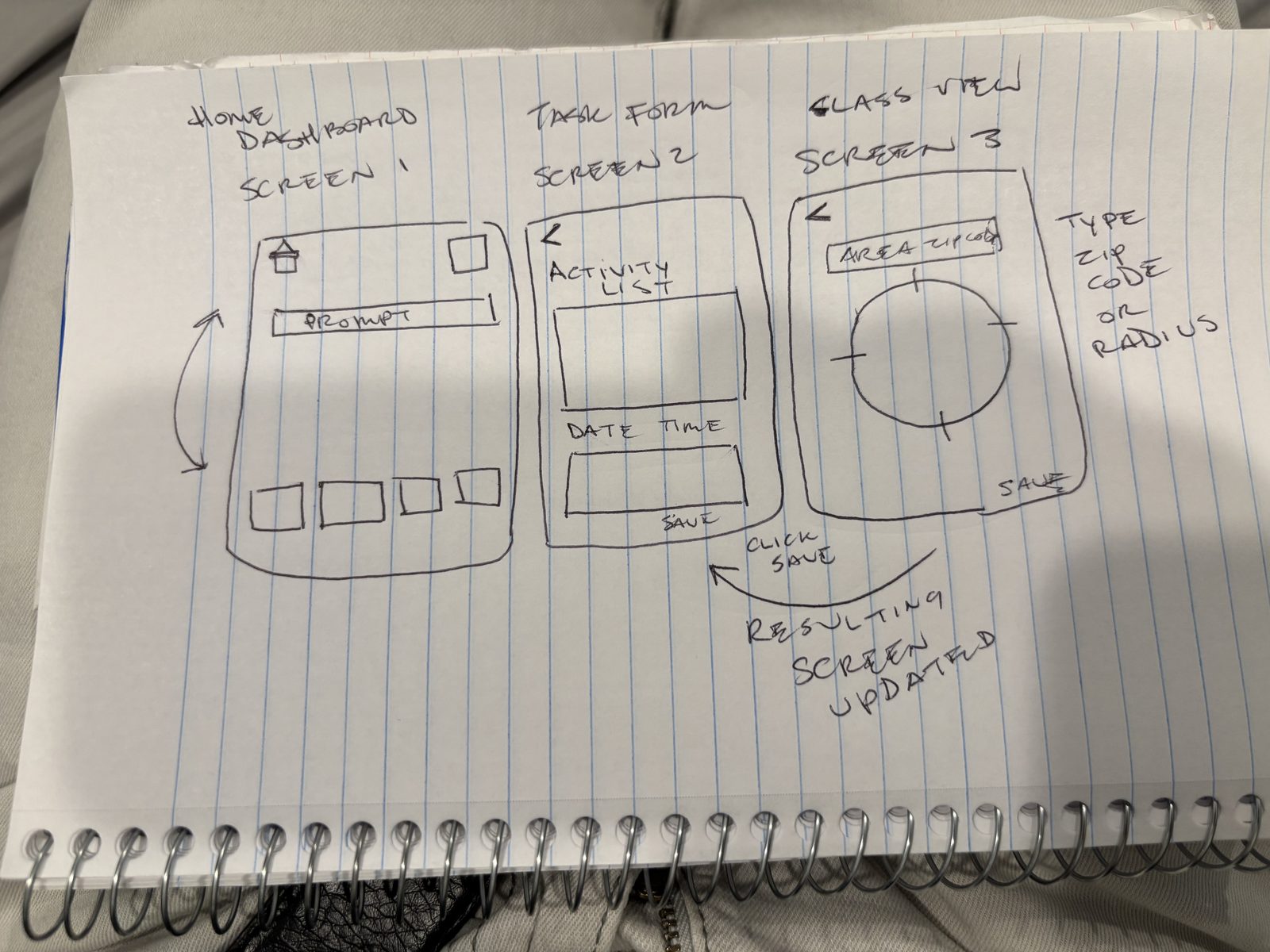
Hand-drawn low-fidelity screens for the flow above, in order: Intro → Options/Home → Mind/Body → Peer Forum → Knowledge Hub. Two flow diagrams (with the “click → function” arrows) follow at the end. Note: the Companion is present on every screen — it anchors the bottom of each page and ties the whole app together.
Low-Fidelity Prototype
Paper, Figma, Claude
Focus on layout of key elements like navigation menus, core content, and action buttons. Do not worry about colors or making it look pretty.
Wireframe Screens · 5 main screens
Intro / daily check-in — the Companion’s greeting with Share and Don’t Share buttons on a deliberately bare screen (no header, no menu).
The location feature works like Waze — constantly getting updated by people adding real-time events (e.g., someone walking by the park sees a free concert and adds it).
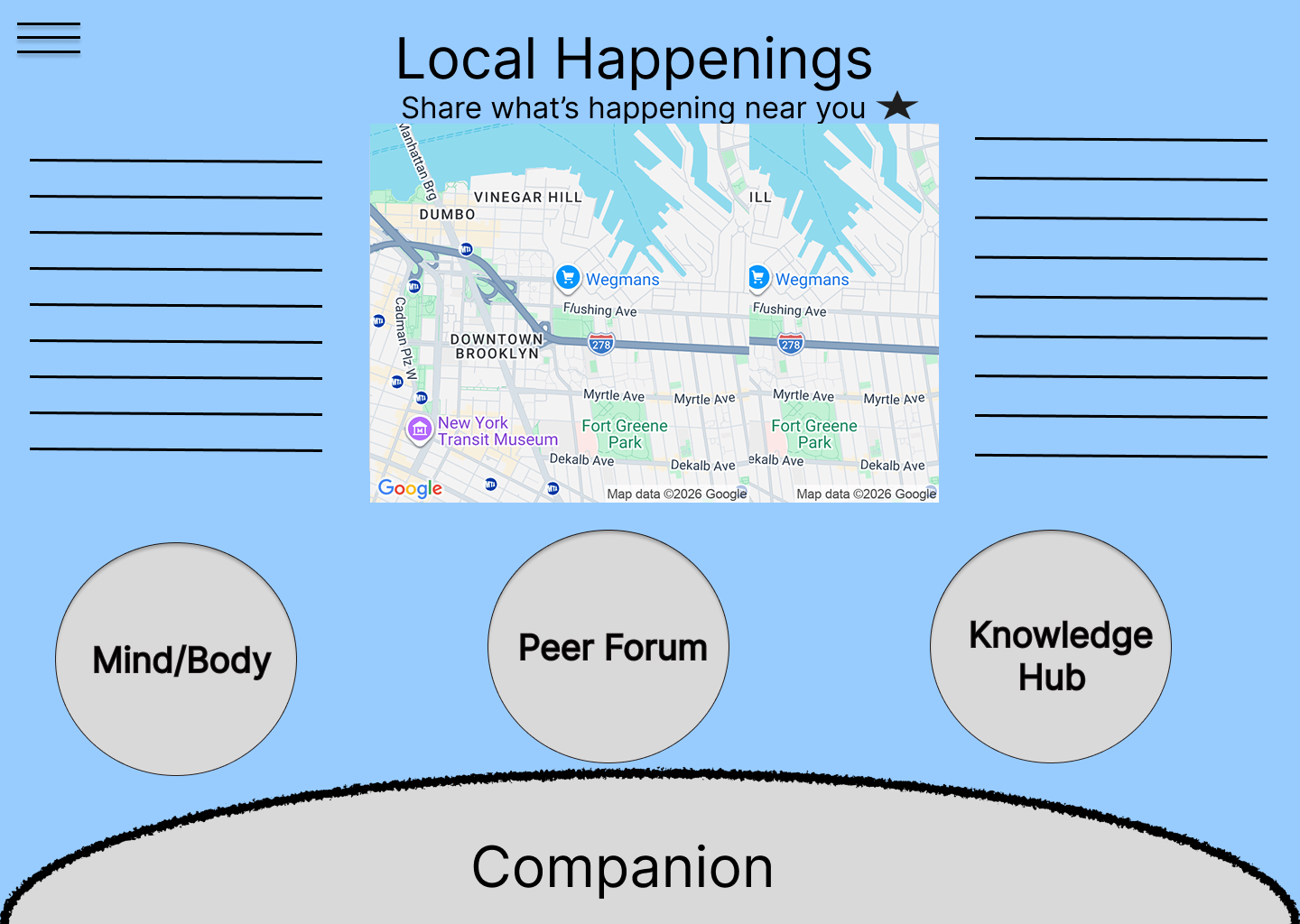
Home / Options hub — the Companion header plus the menu every section branches from: Things to Do Nearby (Local Map), Mind/Body, Peer Forum, and Knowledge Hub.
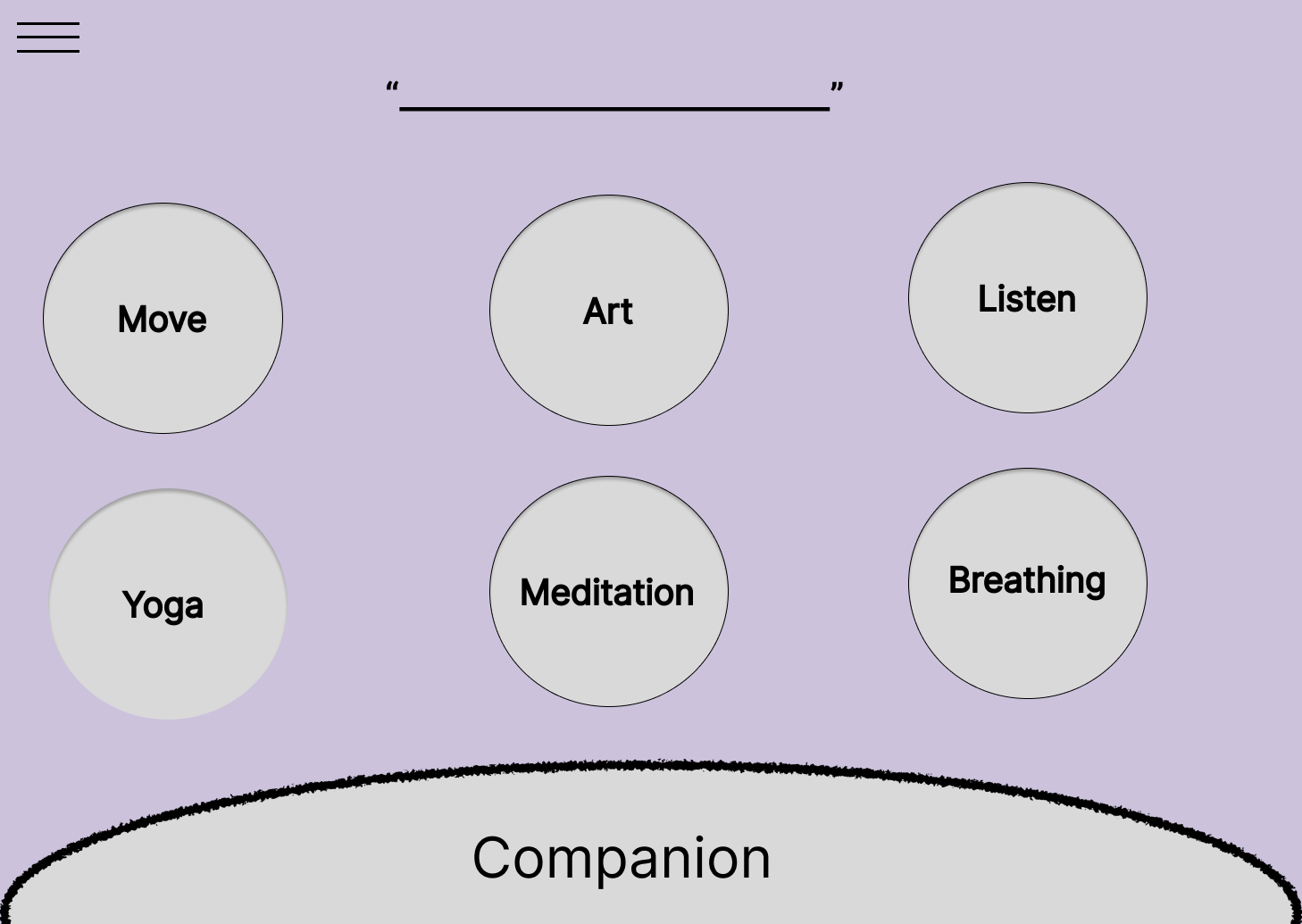
Mind / Body — the Companion header, a short prompt, and a list of guided options (Breath Work, Yoga, Meditation, and more), each opening its own player.
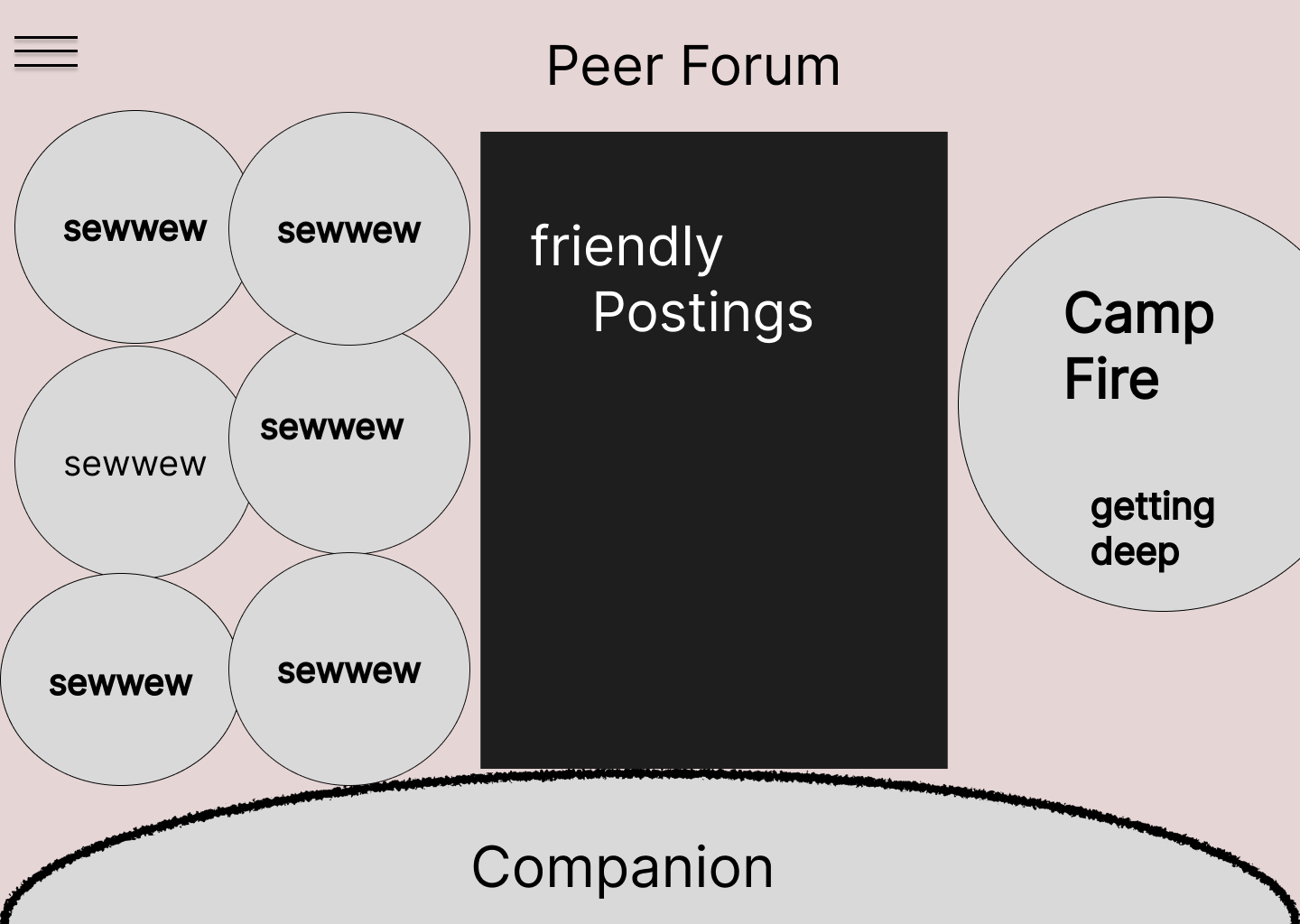
Peer Forum — the Companion header, a Friendly Postings feed, a grid of anonymous chat rooms (Peer Rooms), and Camp Fire for deeper support, plus a Peer Resources link.
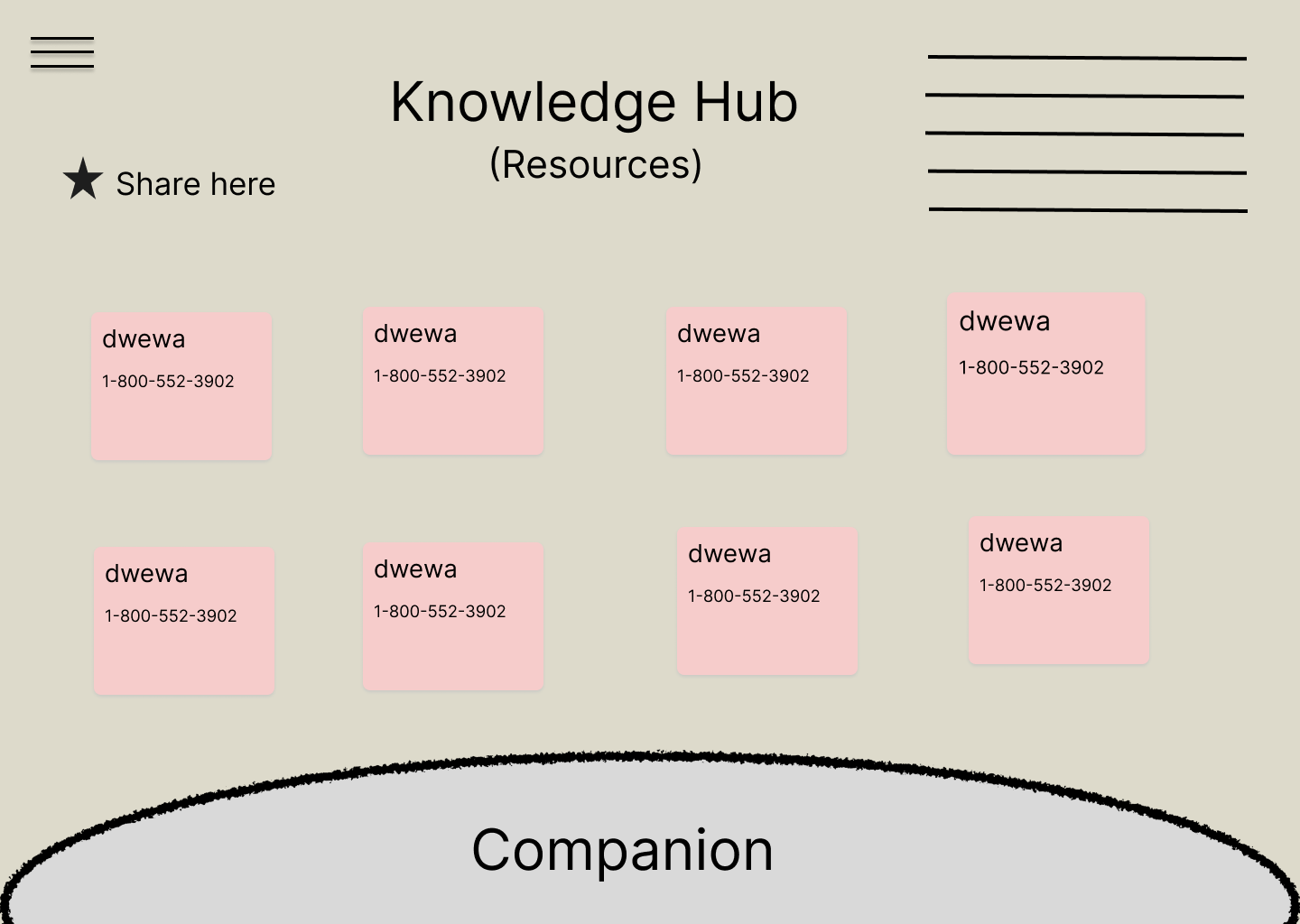
Knowledge Hub — the Companion header and a board of learning resources (videos, readings, links, and references on habits, dopamine, and mental health), Naked Mind–inspired.
We realized we needed a dedicated companion screen since that was the heart of our idea.
Core Function Draft & Function Mapping
Seven lo-fi prototype screens mapping the complete user flow. The Companion anchors every screen; the ☰ menu always returns to the Home/Dashboard hub.
Screen 1 · Intro / Check-In
Deliberately bare: NO header, NO menu, NO title, NO quote, NO Companion bar. The whole screen IS the Companion greeting.
How are you doing?
Function mapping:
saveCheckIn()— logs entry + mood, routes to Companion Chat (Screen 7)openSection('home')— skips to Home/Dashboard (Screen 2)- Distress path: If check-in signals real distress, Companion surfaces 988/human help instead of activities.
Screen 2 · Home / Dashboard (the HUB)
Local Happenings is the hero; map in the middle; three section buttons below; Companion bar at the bottom.
[REAL QUOTE — to be added, with attribution]
Local Happenings
Share what's happening near you ★
Function mapping:
openSection('home')— returns to Home (self-referential via ☰)openSection('local')— routes to Local Happenings (Screen 3)openSection('mindbody')— routes to Mind/Body (Screen 4)openSection('forum')— routes to Peer Forum (Screen 5)openSection('knowledge')— routes to Knowledge Hub (Screen 6)openSection('companion')— opens Companion Chat (Screen 7)
Screen 3 · Local Happenings (Nearby)
Waze-style, community-updated feed: location control, map, category filters, [+ Add Something Nearby], list of nearby happenings.
[REAL QUOTE — to be added, with attribution]
Area: ____________________
Nearby right now:
- ________________ — ______
- ________________ — ______
- ________________ — ______
- ________________ — ______
Function mapping:
openSection('home')— returns to Home via ☰setLocation()— sets location/area, refreshes feedopenHappening(id)— opens event detailsaddHappening()— opens form to add a nearby eventopenSection('companion')— opens Companion Chat
Screen 4 · Mind / Body
A LONGER scrollable list of guided options, room to add more. Each row opens its own player.
[REAL QUOTE — to be added, with attribution]
Pick something to ride out the wave:
Function mapping:
openSection('home')— returns to Home via ☰openExercise(id)— opens guided exercise player; returns to this screen on completionopenSection('companion')— opens Companion Chat
Screen 5 · Peer Forum
Three stacked parts: Friendly Postings (hero feed), Peer Rooms (grid of anonymous rooms), Camp Fire (deeper support).
[REAL QUOTE — to be added, with attribution]
Function mapping:
openSection('home')— returns to Home via ☰createPost()— opens post creation formopenPost(id)— opens full postopenRoom(id)— opens anonymous chat roomopenCampfire()— opens Camp Fire deeper-support spaceopenSection('companion')— opens Companion Chat
Screen 6 · Knowledge Hub
Bulletin board of resources: a Share-here action + a flex-wrap board of tappable resource cards. Distinct from Local Happenings: NO map, NO location, NO category filters.
[REAL QUOTE — to be added, with attribution]
Function mapping:
openSection('home')— returns to Home via ☰shareResource()— opens form to share a resourceopenResource(id)— opens selected resourceopenSection('companion')— opens Companion Chat
Screen 7 · Companion Chat
Only reached via [Share] on the Intro. Message-box screen. Menu returns to Home so it's not a dead end.
[REAL QUOTE — to be added, with attribution]
Companion: ____________________________
You: ____________________________
Companion: ____________________________
Function mapping:
openSection('home')— returns to Home via ☰saveCheckIn()— sends message, continues conversation- Distress path: If conversation signals real distress, Companion surfaces 988/human help instead of activities.
JavaScript Code Generation
Prompt used
HTML setup — body-level only; the Web Studio adds <html> / <head>
<h2>How are you feeling?</h2>
<!-- Each button sends its feeling to showOptions(). -->
<button onclick="showOptions('stressed')">Stressed</button>
<button onclick="showOptions('lonely')">Lonely</button>
<button onclick="showOptions('restless')">Restless</button>
<button onclick="showOptions('good')">Good, just unwinding</button>
<!-- The matching options get written into this empty box. -->
<div id="menu"></div>
JavaScript function — the commented code the AI provided
// A menu of options for each feeling (longer lists, so there's plenty to choose from).
const optionsByFeeling = {
  stressed: ["2 minutes of breath work", "A short walk outside", "See what's happening nearby",
             "A body scan", "A word of encouragement", "Drop into a peer room"],
  lonely:   ["Drop into a peer room", "Read a word of encouragement", "Find a nearby event",
             "Post in Friendly Postings", "Enter Camp Fire for deeper support"],
  restless: ["A quick 5-minute move", "A grounding exercise", "Step outside for fresh air",
             "Stretch it out", "See what's happening nearby"],
  good:     ["Save what's working today", "Check out something nearby",
             "Share encouragement in the forum", "Try a new exercise"]
};
// showOptions() runs when the user taps a feeling button.
function showOptions(feeling) {
  // 1. Find the box on the page where the menu will go.
  const menuBox = document.getElementById("menu");
  // 2. Look up the list of options that matches the chosen feeling.
  const options = optionsByFeeling[feeling];
  // 3. Start the text with a gentle, no-pressure heading.
  let html = "<p>No rules — here are some of the things also available to you right now:</p><ul>";
  // 4. Add each option as a list item.
  for (let i = 0; i < options.length; i++) {
    html += "<li>" + options[i] + "</li>";
  }
  // 5. Close the list.
  html += "</ul>";
  // 6. Show the finished menu.
  menuBox.innerHTML = html;
}
Live preview — tap a feeling and the options appear below
How are you feeling?
It worked the first time when we tried it in a separate test, but we had some minor trouble getting it to work when we applied it to this notebook — the buttons didn’t respond at first. We troubleshooted and found the function needed to be in a live script tag to actually run. Once we added that, tapping a feeling showed the options.
Summary of Work & Iteration
A brief summary of what we built, the challenges we faced, and how we iterated — plus a link to the working project in the Codecraft Works Web Studio.
Our working prototype, embedded live below — tap through it right here, or open it in a new tab.
Optional opens with a 7-second splash page that introduces what the app is about. The second screen is a check-in that asks users how they're doing in the moment, giving them the option to share or not share. If they choose to share, they're taken to the companion screen where they can interact with a friendly bot; if they choose not to share, they're taken to the home page. Users can return to the home page from the hamburger menu available at the top of each main page, or navigate back and forth using the arrows at the top of the screen. The home page features a hub for what's going on nearby, along with links to the other main pages: mind/body, chat rooms, and the knowledge board. In total, the prototype has 7 screens with working navigation between them.
One challenge we faced was thinking as a team and merging our different ideas and styles. It took us time to agree on a name and the overall look of the app. We overcame this by listening to each other, narrowing down our ideas, and finding common ground. We also found it challenging to work with AI, which felt like working with another team member. We learned that we needed to be very specific about how we expressed our vision to get the results we wanted. Using the clone feature, we experimented with different aesthetics across the pages and with different logo designs, which let us try out ideas without risking the version that was already working.